Documentation
Everything you need to know about RuneSpoke Hub

Slack Integration
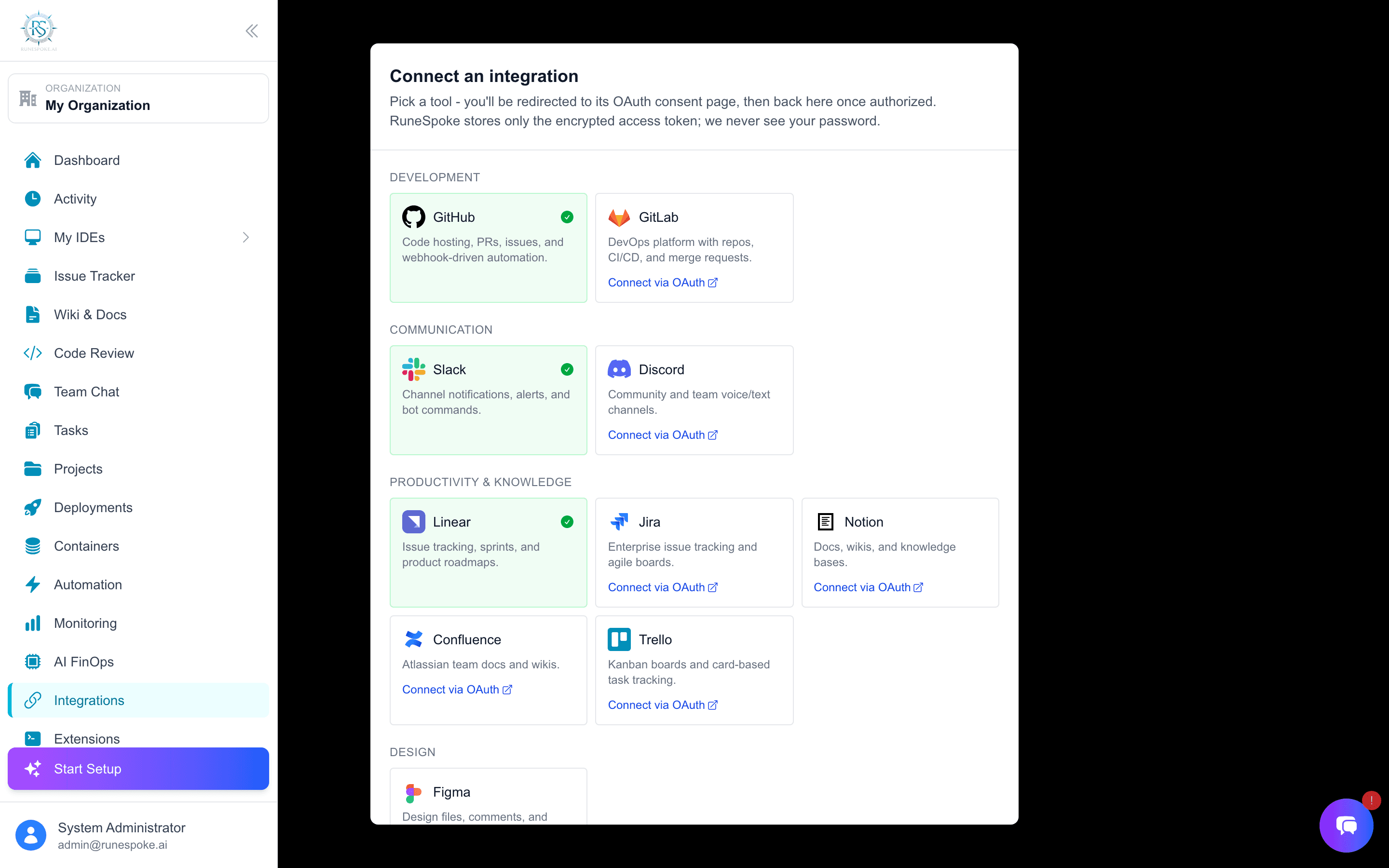
Connect RuneSpoke Hub with Slack to receive intelligent notifications, control workflows, and interact with your AI assistant directly from your team channels.
Why Connect Slack?
Smart Notifications
Get AI-filtered notifications about deployments, issues, and workflow completions directly in your team channels.
Chat with AI Assistant
Interact with your RuneSpoke AI assistant using slash commands, get code reviews, and manage workflows.
Workflow Control
Start deployments, approve code reviews, and manage containers directly from Slack using simple commands.
Team Collaboration
Share AI insights, coordinate deployments, and keep your entire team in sync with development activities.
Setup Guide
Navigate to Integrations
In your RuneSpoke Hub dashboard, go to the Integrations page and find the Slack integration card.
Go to IntegrationsAuthorize RuneSpoke Hub
Click "Connect to Slack" and authorize RuneSpoke Hub to access your Slack workspace. You'll need admin permissions or approval from your Slack admin.
If you're not a Slack admin, the app will be submitted for approval. Your admin will receive a notification.
Configure Channels
Choose which channels should receive notifications for different types of events:
- • General notifications: #dev-updates or #general
- • Deployment alerts: #deployments
- • Issue tracking: #issues or #bugs
- • AI interactions: #ai-assistant or dedicated channel
Test the Integration
Test your connection by using slash commands or triggering a workflow. You should see a confirmation message.
Your Slack workspace is now connected to RuneSpoke Hub!
Available Slash Commands
Once connected, you can use these commands in any channel where the RuneSpoke Hub app is installed:
/runespoke status
Check the status of your deployments, containers, and workflows
/runespoke deploy [environment]
Trigger a deployment to staging or production
/runespoke ai [question]
Ask your AI assistant anything about your codebase or development process
/runespoke logs [service]
Get recent logs from containers or services
/runespoke workflow run [workflow_name]
Execute a specific automation workflow
Troubleshooting
Commands not working?
- • Make sure the RuneSpoke Hub app is installed in the channel
- • Verify you have the necessary permissions in your Slack workspace
- • Check that your RuneSpoke Hub account is still connected
Not receiving notifications?
- • Check your notification settings in the RuneSpoke Hub dashboard
- • Ensure the correct channels are configured for different notification types
- • Verify that notifications aren't being filtered by your Slack notification settings